
How to Submit a Sitemap in Google Search Console (Step-by-Step Guide)
If you want Google to crawl, index, and rank your website efficiently, submitting a sitemap in Google Search Console (GSC) is essential. A sitemap acts as a roadmap for search engines, helping them understand your site structure and discover important pages faster.
In this guide, you’ll learn how to submit a sitemap in Google Search Console, how to fix common sitemap errors, and best practices to ensure optimal indexing.
What Is a Sitemap and Why Is It Important?
A sitemap is a file—usually in XML format—that lists the URLs you want search engines to crawl and index. It also provides additional information like last modification dates and update frequency.
Why sitemaps matter for SEO
- Helps Google discover new and updated pages faster
- Improves crawl efficiency for large or complex websites
- Essential for new websites with few backlinks
- Helps identify indexing issues in Google Search Console
Without a sitemap, Google can still find your pages—but submitting one gives you more control and visibility over how your site is crawled.
Locating or Creating a Sitemap
Before you can submit a sitemap to GSC, you need to have one ready.
1. XML Sitemap (Most Recommended)
Most websites use an XML sitemap, which is specifically designed for search engines.
Common sitemap URLs:
- https://example.com/sitemap.xml
- https://example.com/sitemap_index.xml
Try opening these URLs in your browser to check if a sitemap already exists.
2. Creating a Sitemap Using Plugins (WordPress)
If you’re using WordPress, sitemap generation is automatic with popular SEO plugins:
- Yoast SEO → /sitemap_index.xml
- Rank Math → /sitemap_index.xml
- All in One SEO → /sitemap.xml
These plugins update your sitemap automatically whenever content changes.
3. Manual Sitemap Generation
For non-WordPress or custom websites, you can generate a sitemap using:
- Online sitemap generators
- CMS-built sitemap tools
- Custom scripts for large sites
Make sure the sitemap follows Google’s XML sitemap protocol.
How to Submit a Sitemap in Google Search Console (Step-by-Step)
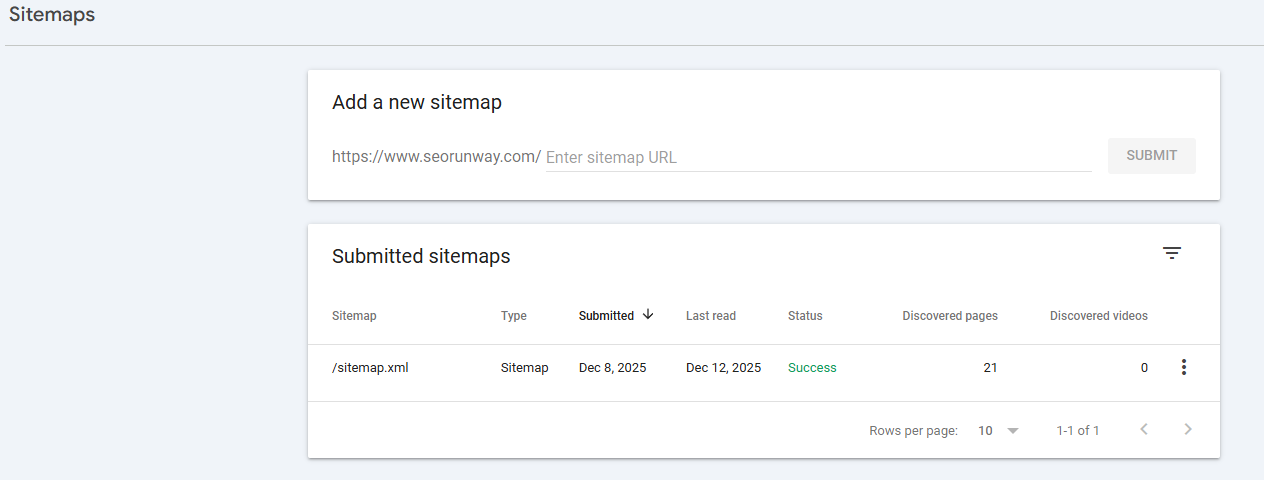
Once your sitemap is ready, follow these steps to submit it in GSC.
Step 1: Open Google Search Console
Go to Google Search Console and select your website property.
Use Domain Property for full coverage (recommended).
Step 2: Navigate to the Sitemaps Section
From the left-hand menu:
- Click Indexing
- Select Sitemaps
Step 3: Enter Sitemap URL
Under “Add a new sitemap”, enter the sitemap path:
sitemap.xml
or
sitemap_index.xml
Then click Submit.
Step 4: Confirmation
If successful, you’ll see a “Sitemap submitted successfully” message. Google will begin processing it.
Note: Sitemap processing time by Google can range from a few minutes to several days.
For a deep dive into your site’s indexing, check out our article on Coverage & Indexing Reports.
Checking Sitemap Status in Google Search Console
Submitting a sitemap isn’t enough—you must monitor its status.
Sitemap status indicators
- Success – Sitemap processed correctly
- Has errors – URLs couldn’t be processed
- Couldn’t fetch – Google couldn’t access the sitemap
Viewing Indexed URLs
Click on the sitemap entry to see:
- Number of discovered URLs
- Indexing status
- Last read date
This helps you track sitemap indexing status and identify crawl problems.
Common Sitemap Errors in GSC (And How to Fix Them)
1. “Submitted URL blocked by robots.txt”
Cause: URL blocked in robots.txt
Fix: Allow crawling or remove blocked URLs from sitemap
2. “Submitted URL marked ‘noindex’”
Cause: Page has noindex meta tag
Fix: Remove noindex or exclude page from sitemap
3. “Submitted URL returns 404”
Cause: Deleted or incorrect URLs
Fix: Remove broken URLs and resubmit sitemap
4. “Duplicate without user-selected canonical”
Cause: Multiple versions of same page
Fix: Use canonical URLs and include only canonical versions in sitemap
Resubmitting Sitemap After Site Updates
You should resubmit your sitemap after:
- Publishing large amounts of new content
- Removing many URLs
- Migrating to HTTPS
- Changing domain or site structure
Do you need to resubmit every time?
No. If your sitemap updates automatically, Google will recrawl it. Manual resubmission is only helpful after major changes.
Sitemap Best Practices for SEO
1. Sitemap Size Limit
- Max 50,000 URLs per sitemap
- Max 50MB (uncompressed)
For large sites, use split sitemaps with a sitemap index file.
2. Include Only Canonical URLs
Avoid:
- Parameter URLs
- Duplicate pages
- Pagination URLs (unless necessary)
Only submit URLs you want indexed.
3. Keep Sitemap Updated
- Automatically update when content changes
- Use correct lastmod dates
- Remove deleted URLs promptly
4. Sitemap vs Robots.txt (Know the Difference)
- Sitemap → Tells Google what to crawl
- Robots.txt → Tells Google what not to crawl
A URL blocked in robots.txt should not appear in your sitemap.
5. Use HTTPS URLs Only
Always submit HTTPS versions if your site uses SSL.
How Long Does Google Take to Process a Sitemap?
- Small sites: Minutes to hours
- Medium sites: 1–3 days
- Large sites: Several days
Processing ≠ indexing. Indexing depends on content quality and crawl priority.
How to Remove a Sitemap from Google Search Console
If you’ve submitted the wrong sitemap or no longer want Google to use it, you can remove a sitemap directly from Google Search Console.
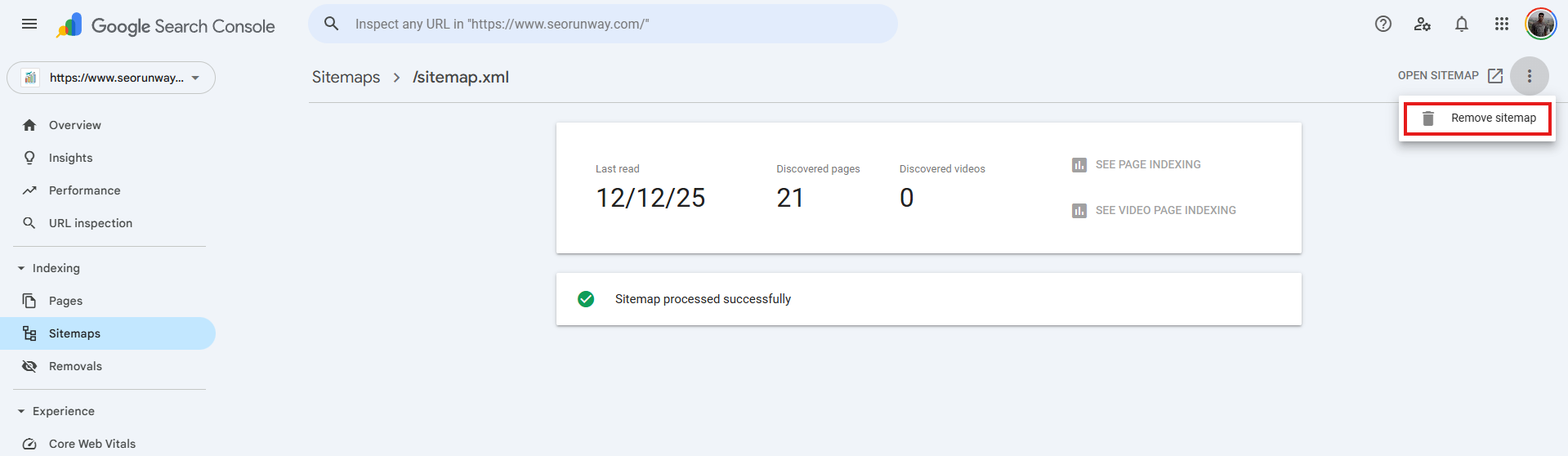
Steps to Remove a Sitemap in GSC
- Open Google Search Console
- Select your website property
- Go to Indexing → Sitemaps
- Click on the sitemap you want to remove
- Click the three-dot menu (⋮)
- Select Remove sitemap
This removes the sitemap reference from Search Console, but it does not delete the sitemap file from your server.
When Should You Remove a Sitemap?
- You submitted the wrong sitemap URL
- The sitemap contains outdated or broken URLs
- You switched to a new sitemap index
- You migrated domains or site structure
After removing a sitemap, submit the correct or updated sitemap to ensure proper crawling and indexing.
Final Thoughts
Submitting a sitemap in Google Search Console is one of the most important SEO setup steps. It improves crawl efficiency, helps diagnose indexing issues, and ensures Google understands your website structure.
If you haven’t submitted your sitemap yet, do it today—it takes less than two minutes and can significantly impact your SEO performance.