Understanding GSC Indexing & Pages Reports
Why Indexing Matter More Than You Think
Publishing a page does not guarantee that it will appear on Google.
One of the biggest misconceptions in SEO is believing that once a page is live, Google will automatically index and rank it. In reality, Google only ranks pages that are indexed, and the Google Search Console Coverage (now Indexing) report is the clearest window into how Google treats your URLs.
The Google Search Console Indexing → Pages report helps you understand:
- Which pages are indexed
- Which pages are blocked or excluded
- Why certain URLs are not appearing in search results
- Whether technical issues are preventing indexing
If pages are not indexed, they cannot generate impressions, clicks, or rankings — no matter how good the content is.
This guide breaks down the Indexing → Pages report explained, common errors, excluded URL meanings, and exactly how to fix indexing issues like discovered but not indexed, crawled but not indexed, canonical problems, and more.
What Is the Google Search Console Indexing → Pages Report?
The Coverage report (now labeled Pages under Indexing) shows the indexing status of URLs Google has discovered on your site.
You’ll find it inside:
Google Search Console → Indexing → Pages
This report categorizes URLs based on how Google processes them, making it one of the most critical reports for technical SEO and site health monitoring.
Sections of the Indexing → Pages Report Explained
The Indexing → Pages report divides URLs into four primary categories:
1. Valid
Meaning: These pages are indexed and eligible to appear in Google Search.
What to do:
- Monitor for sudden drops
- Ensure important URLs stay in this section
- Validate sitemap coverage
Not all valid URLs are equal — some may still have canonical or enhancement warnings.
2. Valid but With Warnings
Meaning: Pages are indexed, but Google detected potential issues.
Common examples:
- Indexed, though blocked by robots.txt
- Indexed with minor canonical discrepancies
Why it matters: Google is indexing these pages despite conflicting signals, which can lead to unstable rankings.
Action: Review warnings carefully and resolve inconsistencies.
3. Error
Meaning: These pages cannot be indexed at all due to serious problems.
Common errors include:
- Server errors (5xx)
- Redirect errors
- Submitted URL blocked by robots.txt
- Submitted URL marked ‘noindex’
- Soft 404s
Priority level: High — errors should always be fixed first.
4. Excluded
Meaning: Google intentionally chose not to index these URLs.
This is often misunderstood. Not all excluded URLs are bad — some are expected. However, many indexing problems hide here.
Excluded URLs GSC Meanings (Most Important Section)
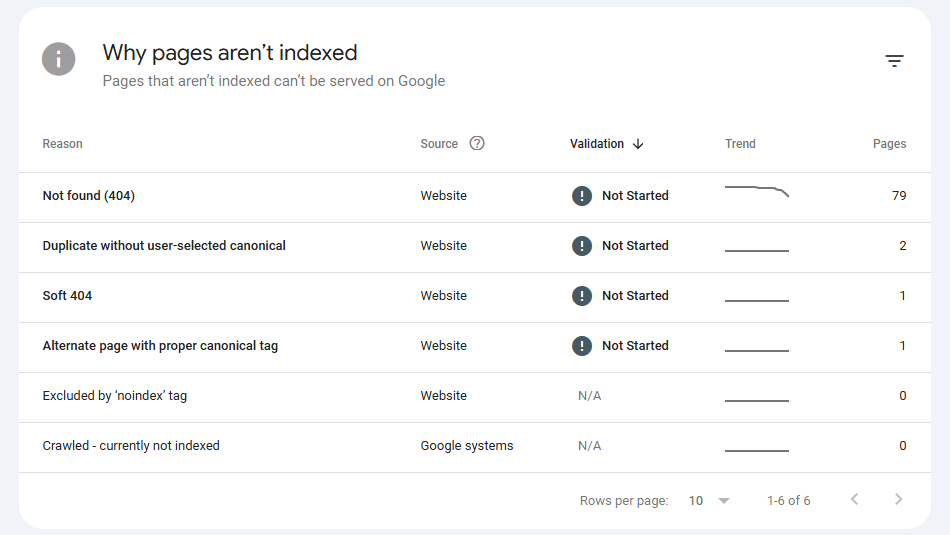
Let’s break down the most common excluded URL statuses and what they actually mean.
Discovered – Currently Not Indexed
Meaning: Google knows the URL exists but hasn’t crawled it yet.
Common causes:
- Crawl budget limitations
- Low perceived page quality
- Weak internal linking
- Duplicate or thin content
How to fix:
- Improve internal linking
- Add the page to your XML sitemap
- Enhance content quality
- Avoid publishing large volumes of low-value pages
This is one of the most common indexing issues on large sites.
Crawled – Currently Not Indexed
Meaning: Google crawled the page but decided not to index it.
Why this happens:
- Content is similar to other pages
- Page adds little unique value
- Poor user experience
- Over-optimized or spam-like content
Crawled but not indexed solution:
- Improve originality and depth
- Add unique data, visuals, or insights
- Strengthen internal links
- Ensure the page solves a real search intent
Duplicate Without User-Selected Canonical
Meaning: Google detected duplicate content and chose its own canonical URL.
Why it’s risky:
- Google may index a URL you don’t want ranked
- Link equity may be split
How to fix:
- Add a clear
<link rel="canonical"> - Ensure internal links point to the canonical URL
- Avoid parameter-based duplicates
Duplicate, Google Chose Different Canonical Than User
Meaning: You specified a canonical, but Google ignored it.
Common reasons:
- Conflicting internal links
- Canonical pointing to irrelevant pages
- Weak page signals
Fix:
- Align internal linking with canonical URLs
- Ensure canonical pages are indexable and valuable
Alternate Page With Proper Canonical Tag
Meaning: This is normal and healthy.
Google recognized duplicates and correctly respected your canonical signals. No action required.
Blocked by Robots.txt
Meaning: Google is prevented from crawling the page.
Warning: If a blocked page is important, Google cannot evaluate it properly.
Fix:
- Update robots.txt
- Allow crawling for important URLs
- Never block URLs you want indexed
Excluded by ‘Noindex’ Tag
Meaning: Google found a noindex directive and respected it.
Common mistake: Leaving noindex tags after site migrations or staging environments.
Fix:
- Remove noindex from important pages
- Re-submit for indexing
Soft 404
Meaning: The page exists but appears empty or irrelevant to Google.
Causes:
- Thin content
- Broken templates
- Empty category pages
Fix:
- Add meaningful content
- Return proper 404 for truly dead pages
Common Coverage Errors & Their Meaning
- 404 Not Found: Fix broken links or redirect properly
- Server Errors (5xx): Fix server response issues immediately
- Submitted URL Not Indexed: Clean up your sitemap
- Canonical Issues: Align canonicals, links, and sitemaps
How to Debug & Fix Indexing Issues
- Check robots.txt: Ensure important URLs are not blocked
- Audit XML sitemaps: Only include indexable URLs
- Fix canonical tags: One canonical per page
- Review noindex usage: Use intentionally, not accidentally
- Fix server & response codes: Ensure 200 status for indexable pages
- Improve internal linking: Avoid orphan pages
When to Request Re-Indexing (URL Inspection Tool)
Use the URL Inspection tool when:
- You fixed a critical error
- You removed noindex or robots blocking
- You updated canonical tags
- You significantly improved content
Do not abuse re-indexing requests. If Google previously chose not to index a page, fix the underlying issue first.
Tips to Maintain a Clean Index Over Time
- Monitor Indexing → Pages reports weekly
- Remove low-quality or outdated pages
- Consolidate duplicate content
- Keep sitemaps clean and updated
- Avoid mass publishing thin pages
- Audit indexing status after site changes
More pages indexed ≠ better SEO. Only pages that deserve to rank should be indexed.
Final Thoughts
The Google Search Console Indexing → Pages report is not just a diagnostic tool — it’s a roadmap showing how Google evaluates your site.
If a page isn’t indexed, it doesn’t exist in search. Mastering this report ensures that your best pages are the ones Google actually sees and ranks.