How to Set Up Google Search Console (Step-by-Step Beginner’s Guide)
Why Setting Up Google Search Console Matters Before Anything Else
If you want your website to rank on Google, Google Search Console (GSC) is non-negotiable. Before SEO tools, before content optimization, and even before backlink building — Google Search Console should be your first setup step.
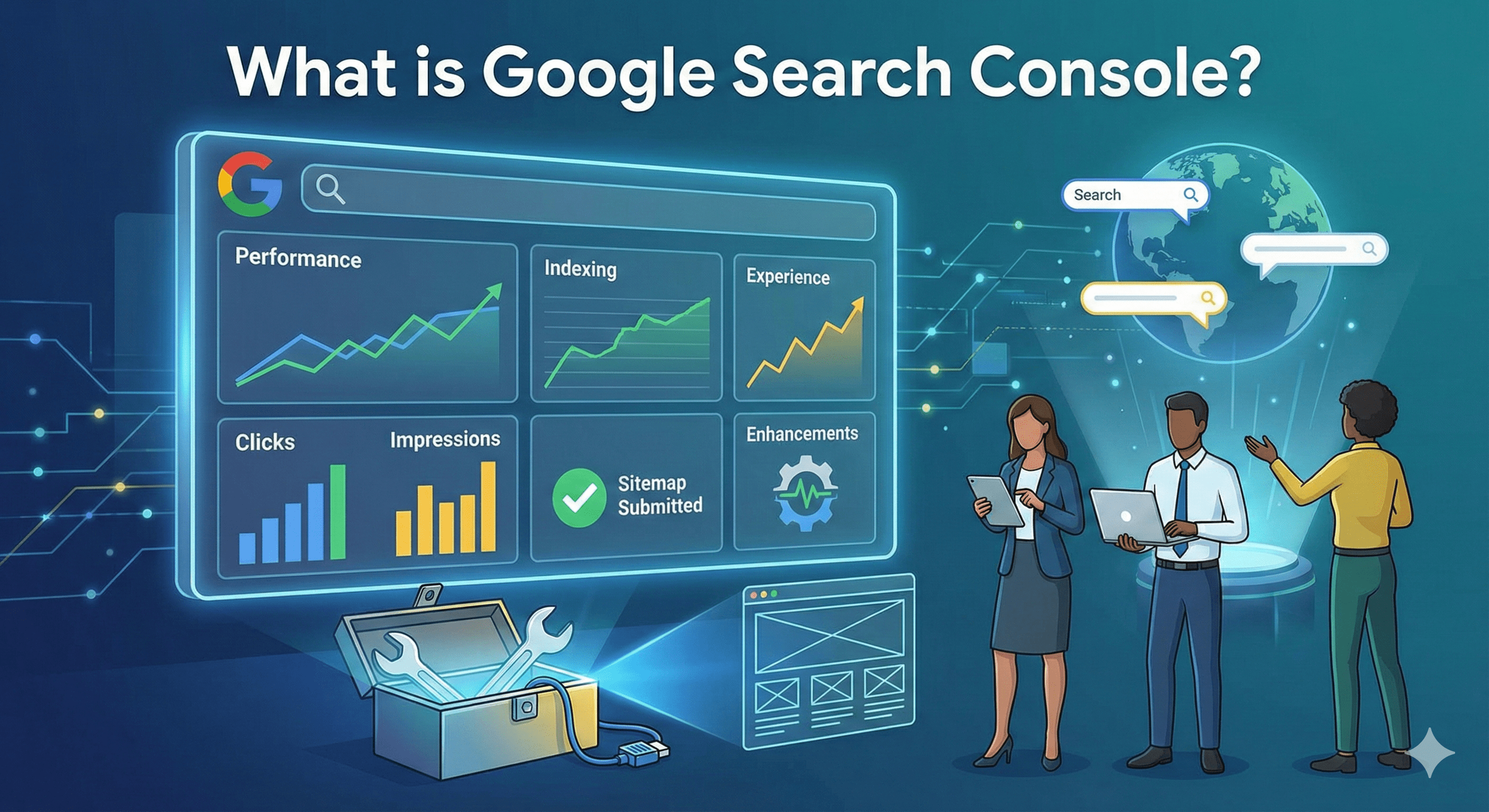
Google Search Console is a free tool from Google that helps you monitor how your website appears in search results. It shows indexing status, search performance, crawl errors, mobile usability issues, Core Web Vitals, and much more. Most importantly, it allows you to communicate directly with Google by submitting sitemaps and requesting indexing.
In this guide, you’ll learn how to set up Google Search Console correctly, verify ownership using multiple methods, understand Domain Property vs URL Prefix, submit your sitemap, and know exactly what to do in the first 24–48 hours after setup.
How to Set Up Google Search Console: Step-by-Step Walkthrough
1. Create or Sign In With a Google Account
To get started, you need a Google account.
- Go to Google Search Console
- Sign in using your Google account
- If you manage SEO for clients, use a dedicated Google account instead of a personal one
Once logged in, you’ll be prompted to add a property.
2. Choose Property Type: Domain vs URL Prefix
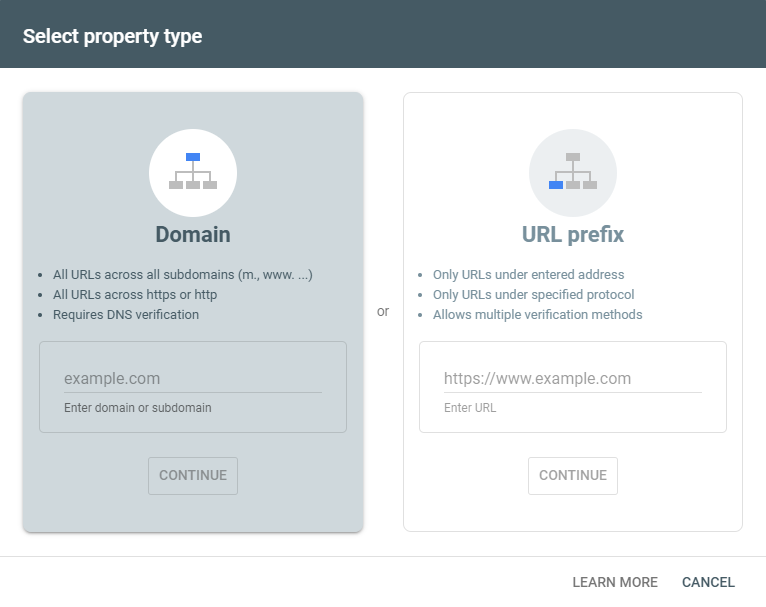
Google Search Console offers two property types, and choosing the right one is crucial.
Domain Property
Tracks all versions of your website, including:
- http / https
- www / non-www
- Subdomains (blog.example.com, shop.example.com)
Pros:
- Complete data coverage
- Recommended for long-term SEO
- Best for professional websites
Cons:
- Requires DNS verification
- Slightly technical for beginners
URL Prefix Property
Tracks only the exact URL you enter (example: https://www.example.com).
Pros:
- Easier verification options
- Good for beginners
- Supports HTML tag, Google Analytics, Google Tag Manager, and file upload verification
Cons:
- Does NOT include other versions automatically
- You must add multiple properties manually
Best practice:
✔ Use Domain Property if you can access DNS settings.
✔ Use URL Prefix if you want a quick setup or don’t control DNS.
3. How to Verify Your Site Ownership in Google Search Console
Verification proves that you own or manage the website. Google offers multiple methods.
Method 1: DNS Verification (Recommended)
This is the most reliable verification method.
- Choose Domain Property
- Copy the TXT record provided by Google
- Go to your domain registrar (GoDaddy, Namecheap, Cloudflare, etc.)
- Add the TXT record in DNS settings
- Return to GSC and click Verify
⏱ DNS propagation may take a few minutes to a few hours.
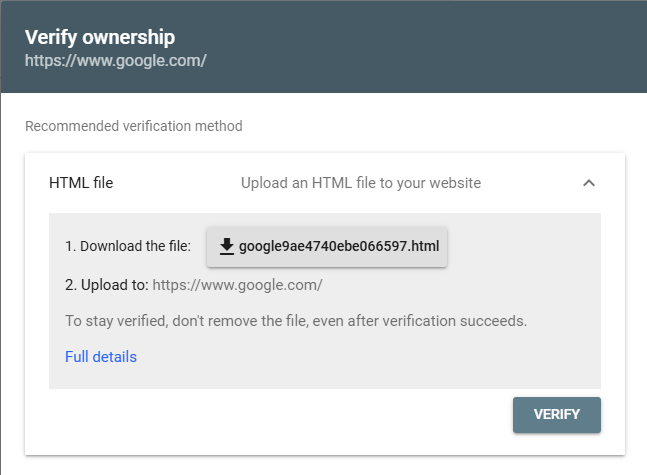
Method 2: HTML File Upload
Best for URL Prefix properties.
- Download the HTML verification file from GSC
- Upload it to your website’s root directory
- Confirm the file is accessible
- Click Verify
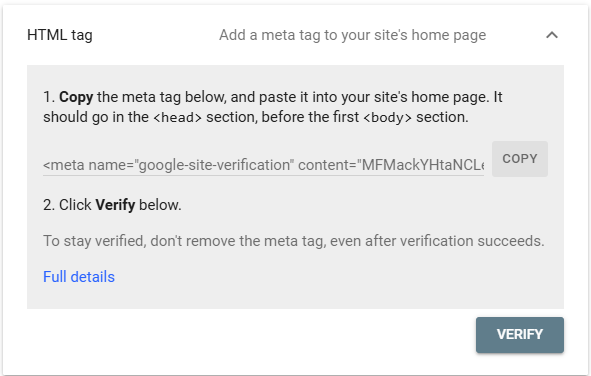
Method 3: HTML Meta Tag Verification
- Copy the meta tag provided
- Paste it inside the
<head>section of your homepage - Save changes
- Click Verify
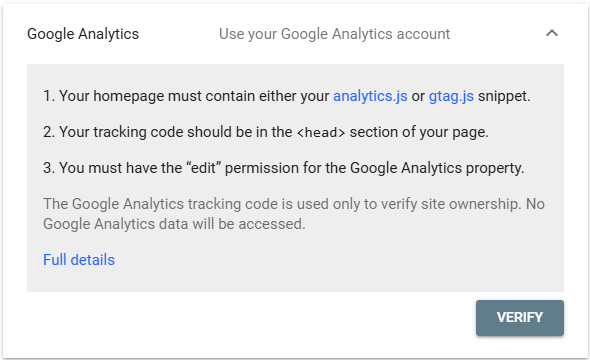
Method 4: Google Analytics Tag
- Ensure you have admin access
- Select Google Analytics verification
- Click Verify
Method 5: Google Tag Manager
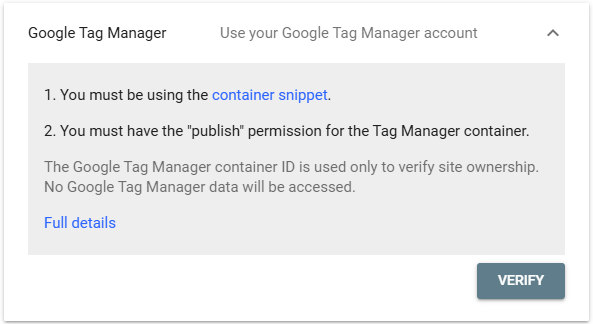
Similar to Analytics verification, but requires container-level access.
4. Add and Verify www and non-www Variants (If Needed)
If you’re using URL Prefix properties, you must manually add:
- https://www.example.com
- https://example.com
Why this matters:
- Google treats them as separate properties
- Search data can be split
- Indexing issues may go unnoticed
✔ Domain Property automatically covers both.
5. Configure Essential Google Search Console Settings
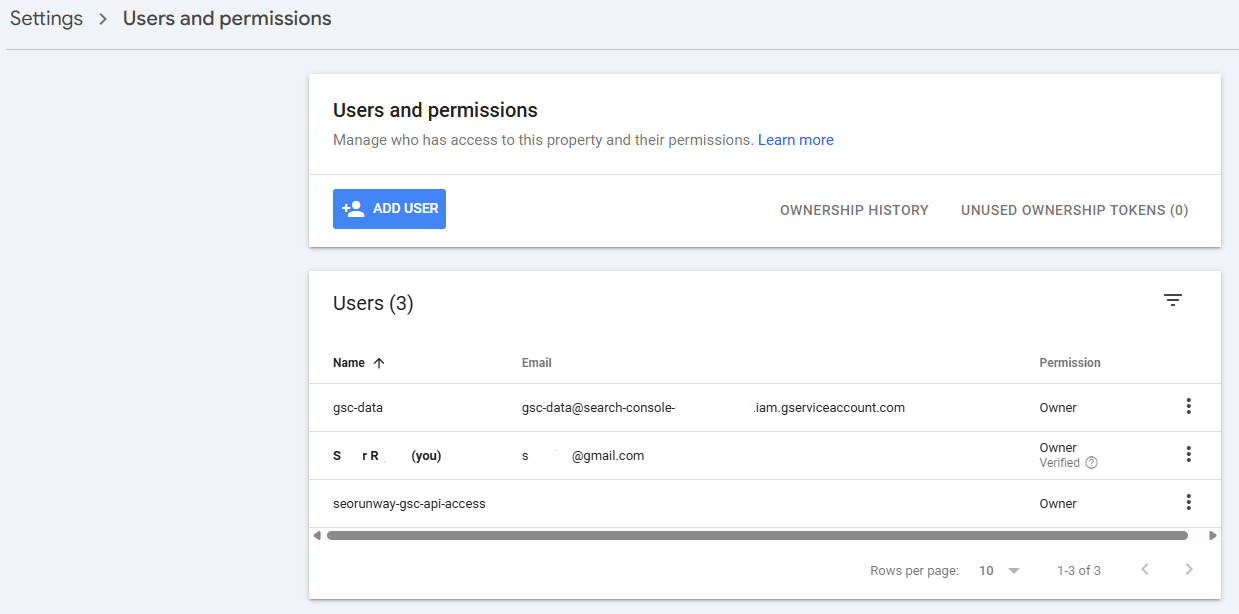
Add Users & Permissions
Go to: Settings → Users and Permissions
- Owner: Full control
- Full user: View all data
- Restricted user: Limited access
Always add:
- SEO manager
- Developer
- Agency (if applicable)
Preferred Domain & URL Structure
- Use HTTPS
- Redirect non-preferred versions using 301 redirects
- Ensure only one version is indexed
6. Submit Sitemap in Google Search Console Setup
Submitting a sitemap helps Google discover and crawl pages faster.
- Go to Sitemaps
- Enter sitemap URL (example: /sitemap.xml)
- Click Submit
✔ WordPress users usually have /sitemap_index.xml (Yoast, Rank Math).
7. Initial URL Submission & Crawl Request
- Use URL Inspection Tool
- Paste important URLs
- Click Request Indexing
This helps Google prioritize crawling for new websites, fresh content, and updated pages.
Post-Setup Checklist (Must-Do Items)
- ✔ Ownership verified
- ✔ Sitemap submitted successfully
- ✔ Correct property type selected
- ✔ Users added
- ✔ No immediate crawl errors
- ✔ Mobile usability checked
- ✔ robots.txt accessible
Common Google Search Console Setup Mistakes
❌ Choosing URL Prefix when Domain access is available
✔ Use Domain Property for complete data.
❌ Forgetting sitemap submission
✔ Always submit sitemap manually.
❌ Ignoring HTTPS & redirects
✔ Ensure only one canonical version exists.
❌ Removing verification files
✔ Don’t delete verification HTML or DNS records.
❌ Not adding team access
✔ Add users early to avoid future issues.
What to Do Immediately After Setup (First 24–48 Hours)
1. Monitor Index Coverage
- Excluded URLs
- Errors
- Crawled but not indexed pages
2. Request Indexing for Priority Pages
- Homepage
- Core service pages
- Important blog posts
3. Check Mobile Usability
Ensure your site is mobile-friendly: Experience → Mobile Usability
4. Review robots.txt
Confirm Google isn’t blocked from important pages.
5. Track Performance Data
- Queries
- Clicks
- Impressions
- Average position
This data becomes the foundation of your SEO strategy.
Final Thoughts
Learning how to set up Google Search Console correctly is one of the most important SEO skills you can master. It gives you visibility into how Google sees your website and helps you fix issues before they affect rankings.
Once your setup is complete, Google Search Console becomes your SEO control panel — guiding decisions, tracking growth, and uncovering opportunities.